Four assigned sources
Place up to four available Parade or local capture sources into a 2×2 monitor. Each quadrant keeps its own source label, format, colour-space readout, zoom, and scopes.
Bring NDI, SMPTE ST 2110, and direct PCI capture sources into one quad—or use Parade as a dedicated iPad monitor from Premiere or DaVinci Resolve while you edit or grade. Switch A/B/C/D full-screen, use synchronized multi-feed recording and touch scopes, and save 10-bit HDR stills from Resolve or live video straight to Photos.
No proprietary SSDs or recording-option keys. Local Parade sessions need no account or internet connection.
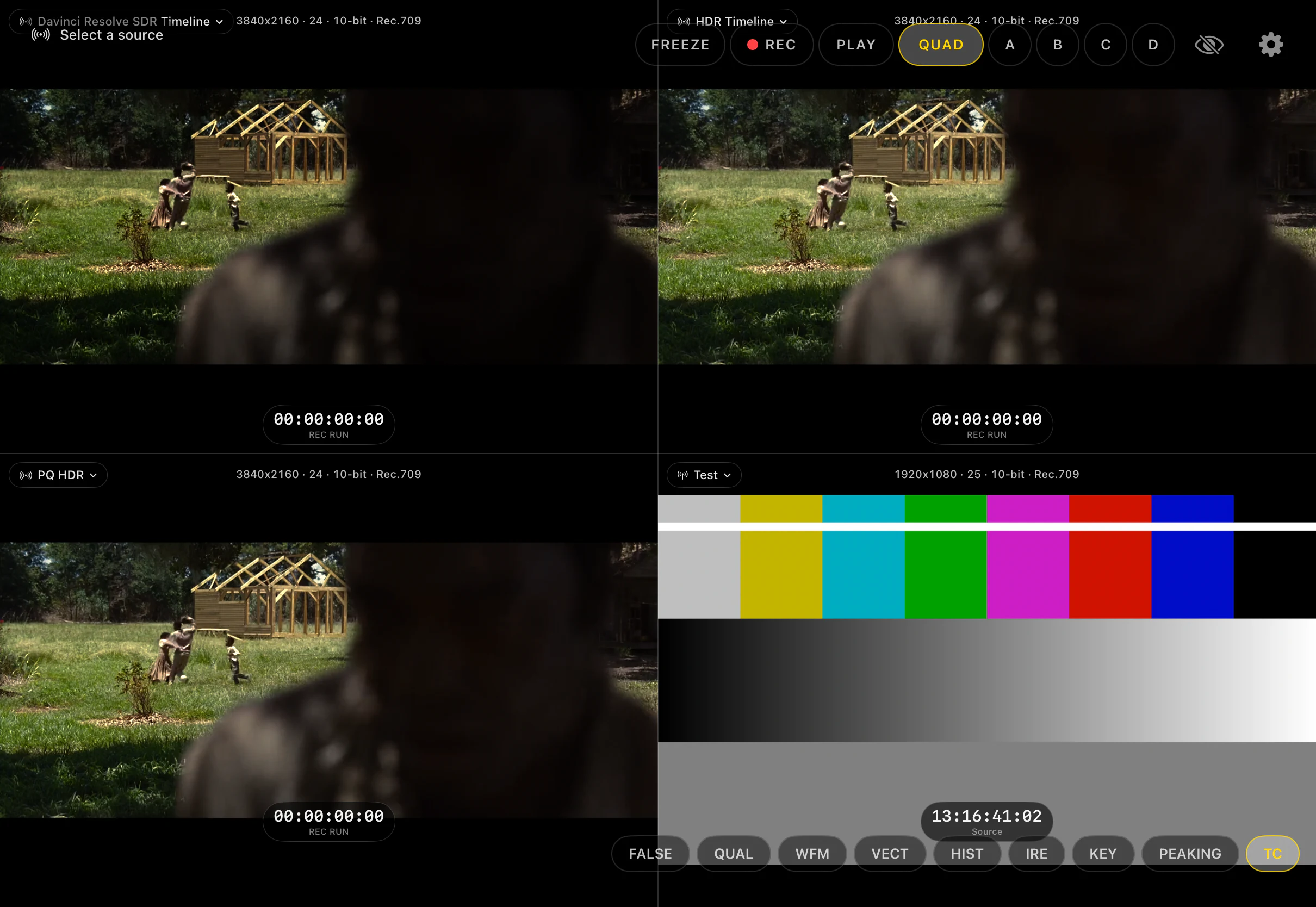
Parade keeps four sources visible in a clean 2×2 monitor. QUAD and A–D controls put any feed full-screen while recording, playback, timecode, and touch scopes stay on the iPad already in your kit.
Place up to four available Parade or local capture sources into a 2×2 monitor. Each quadrant keeps its own source label, format, colour-space readout, zoom, and scopes.
Tap A, B, C, or D—or double-tap the picture—to inspect one source full-screen. The other source connections stay active and recording is unaffected.
Freeze the last displayed frame across the monitor. Zoom, probes, and scopes still work while incoming feeds and active recordings continue.
Record each distinct assigned feed as its own 10-bit HEVC .mov with aligned timing. Play the take back through the same quad or full-screen viewer and use the same inspection tools.
The physical-I/O setup: Parade uses one direct UVC capture path on iPad. Additional quad slots can receive Parade, NDI, SMPTE ST 2110, Resolve, Premiere, or ParadeLink DeckLink sources over the local network.
Start with direct UVC capture. Add Parade transmitters and network sources to fill the other A–D slots, then give operators or clients their own local view.
Mix direct UVC capture with Resolve, Premiere, and other Parade sources. Choose what belongs in each quadrant instead of building the monitor around one fixed input type.
Connect a compatible UVC capture device to an iPhone or iPad. Put that camera in any A–D slot, then monitor, record, or transmit it.
Each Resolve or Premiere output appears as an available Parade source. Assign it to any A–D slot on an iPad using the same Wi-Fi network.
Choose another Parade feed already on the local network and place it beside the camera, Resolve, or Premiere in the same quad.
Connect your camera through a compatible USB-C UVC capture device. Parade monitors that feed locally and sends it straight to nearby iPhones and iPads using Apple's peer-to-peer connection system—the same basic approach AirDrop uses.
Connect Camera A to one iPad and Camera B to another through UVC capture. Each iPad monitors and transmits its own camera, and the two devices exchange their Parade feeds directly. No existing Wi-Fi network or router is required.
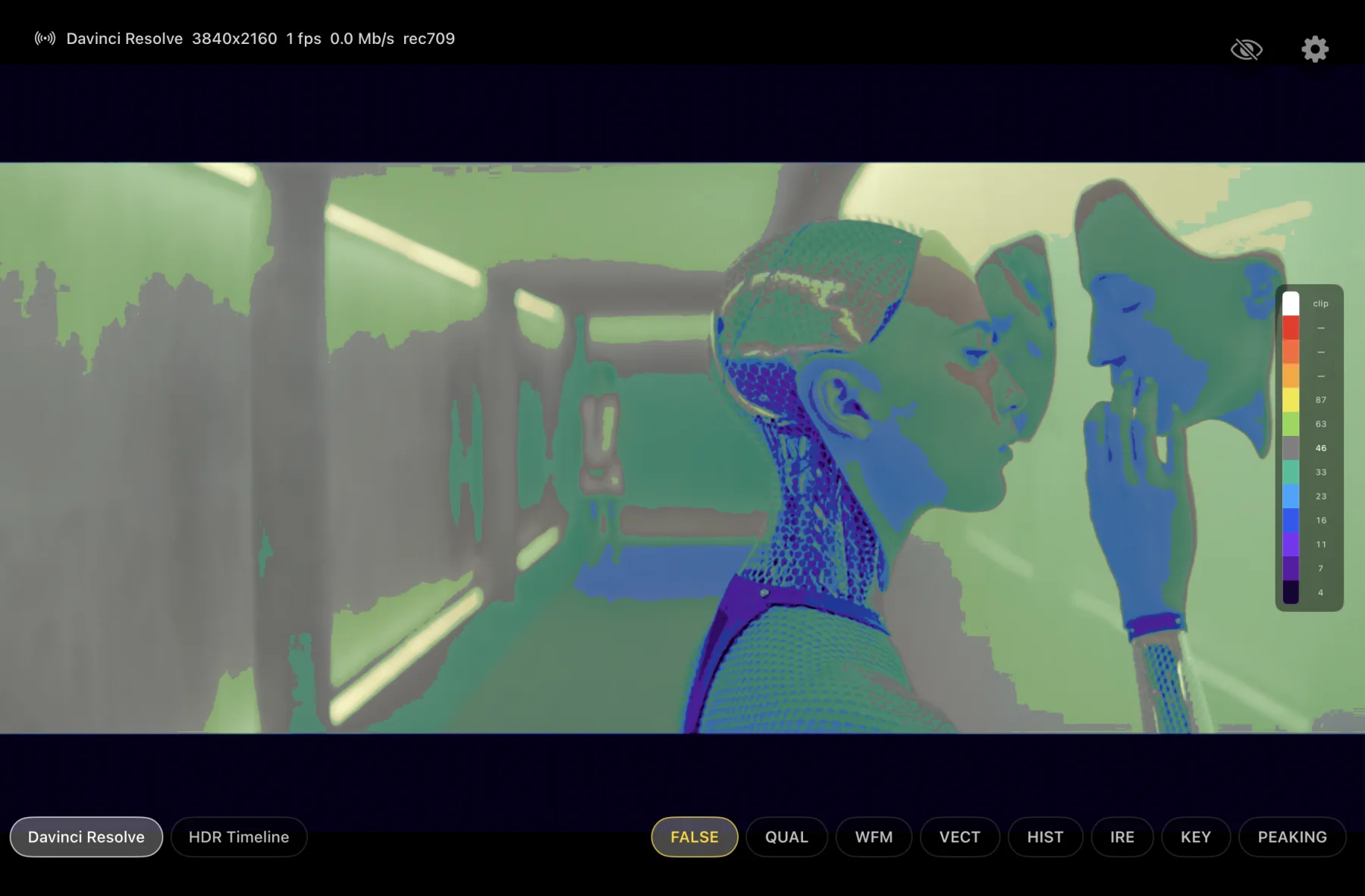
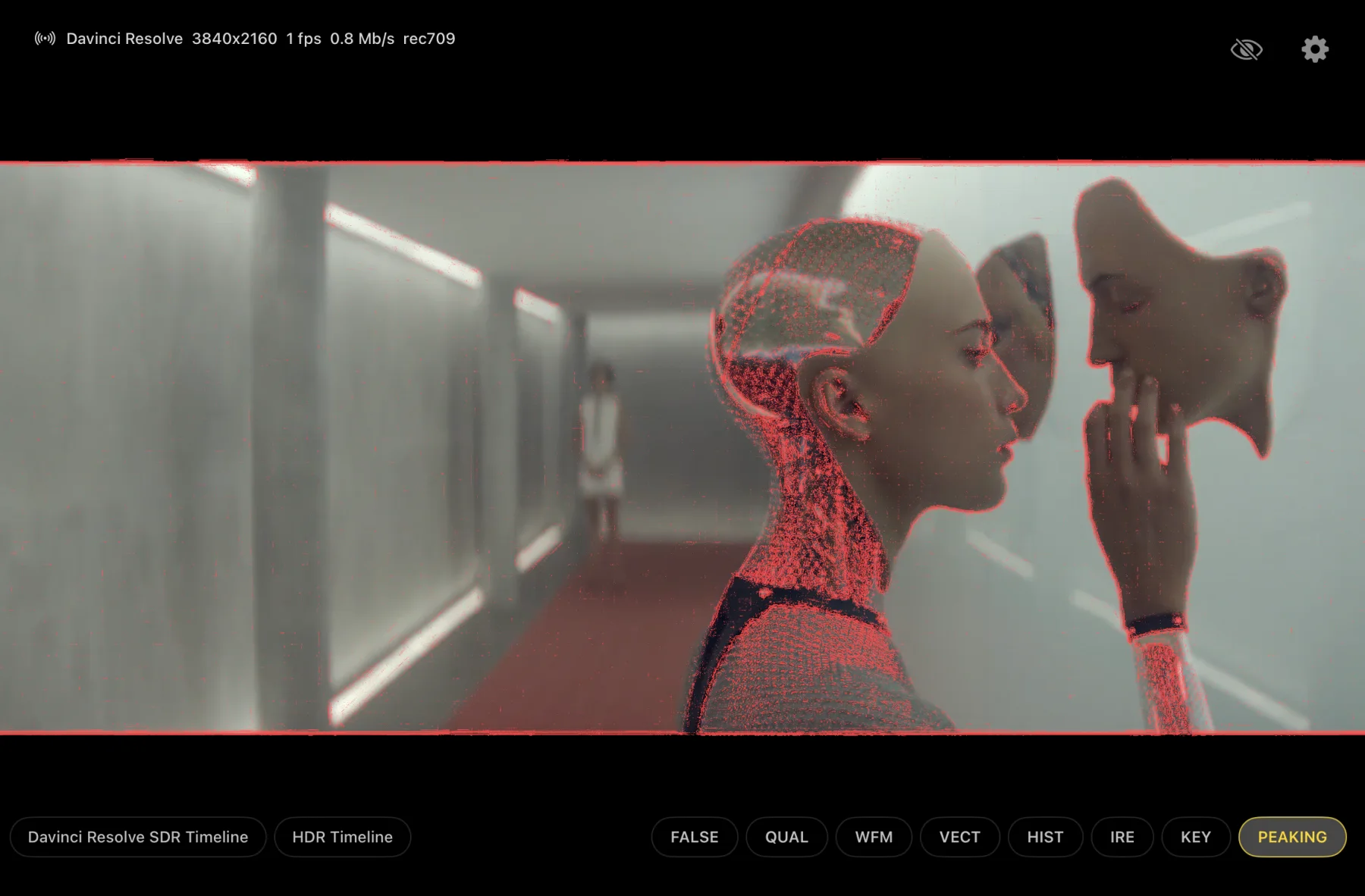
Waveform, vectorscope, histogram, false colour, HSL qualifier, IRE probes, key uniformity, and focus peaking. Move and resize them with your hands or open one full-screen.
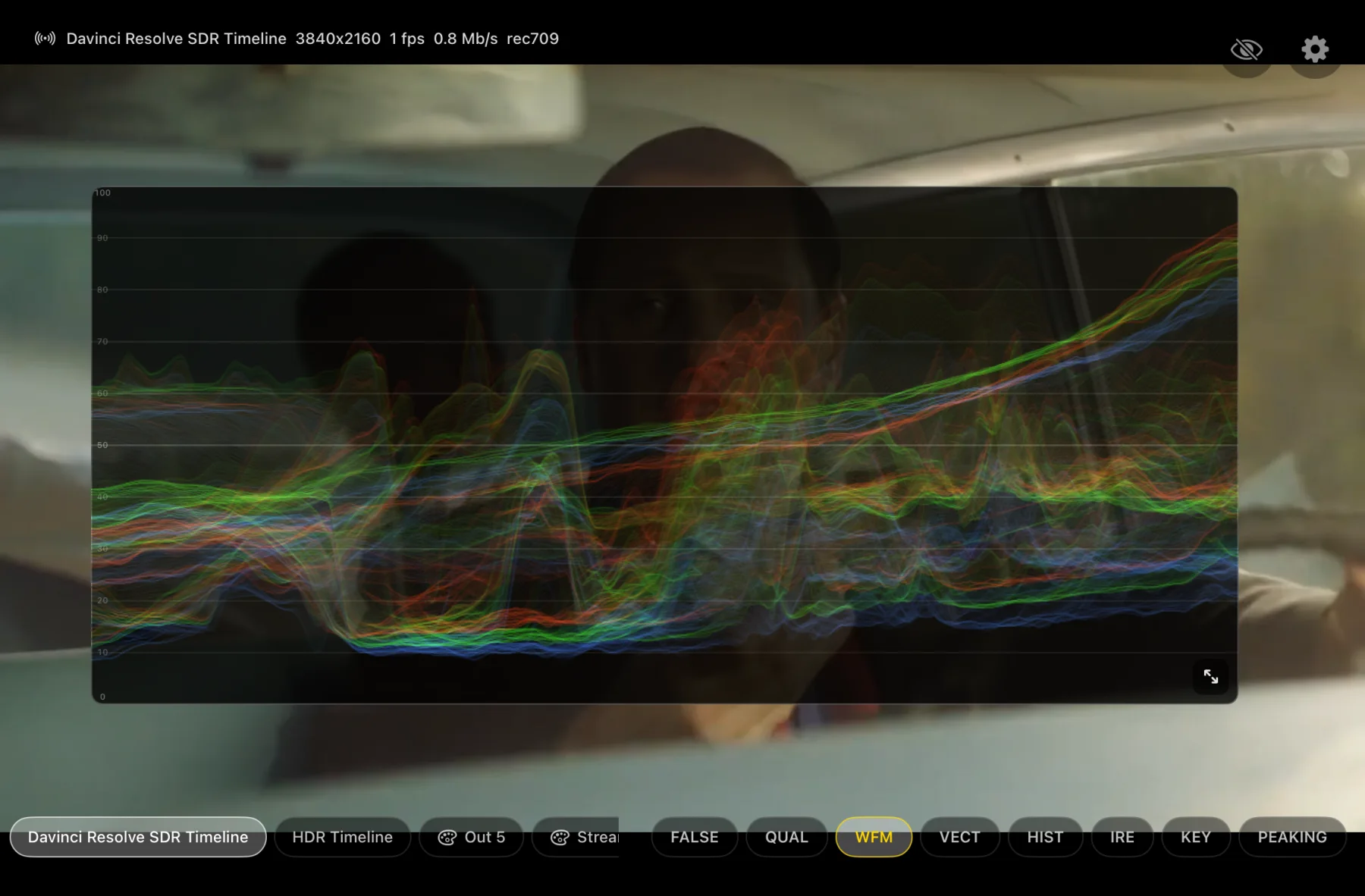
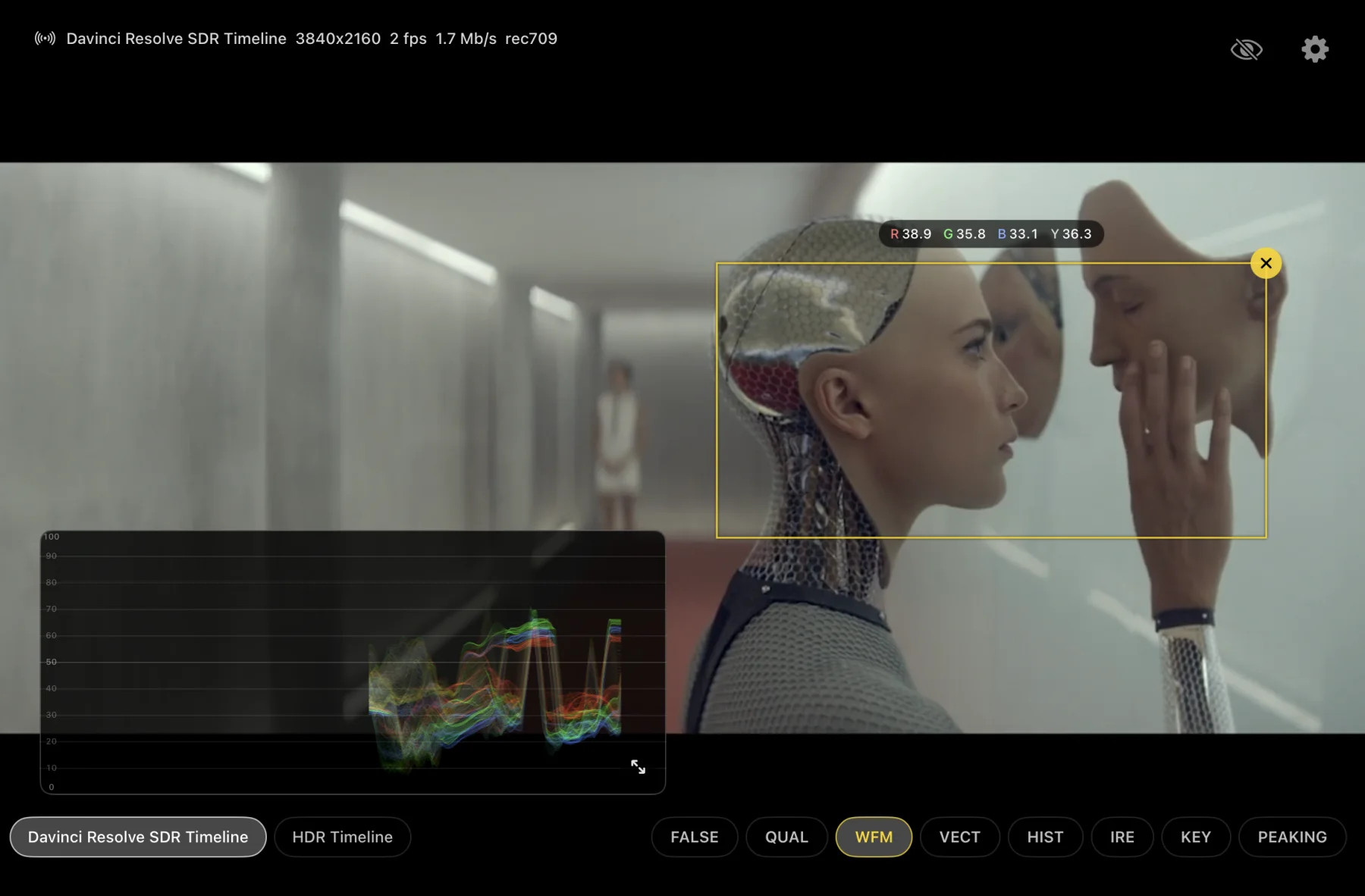
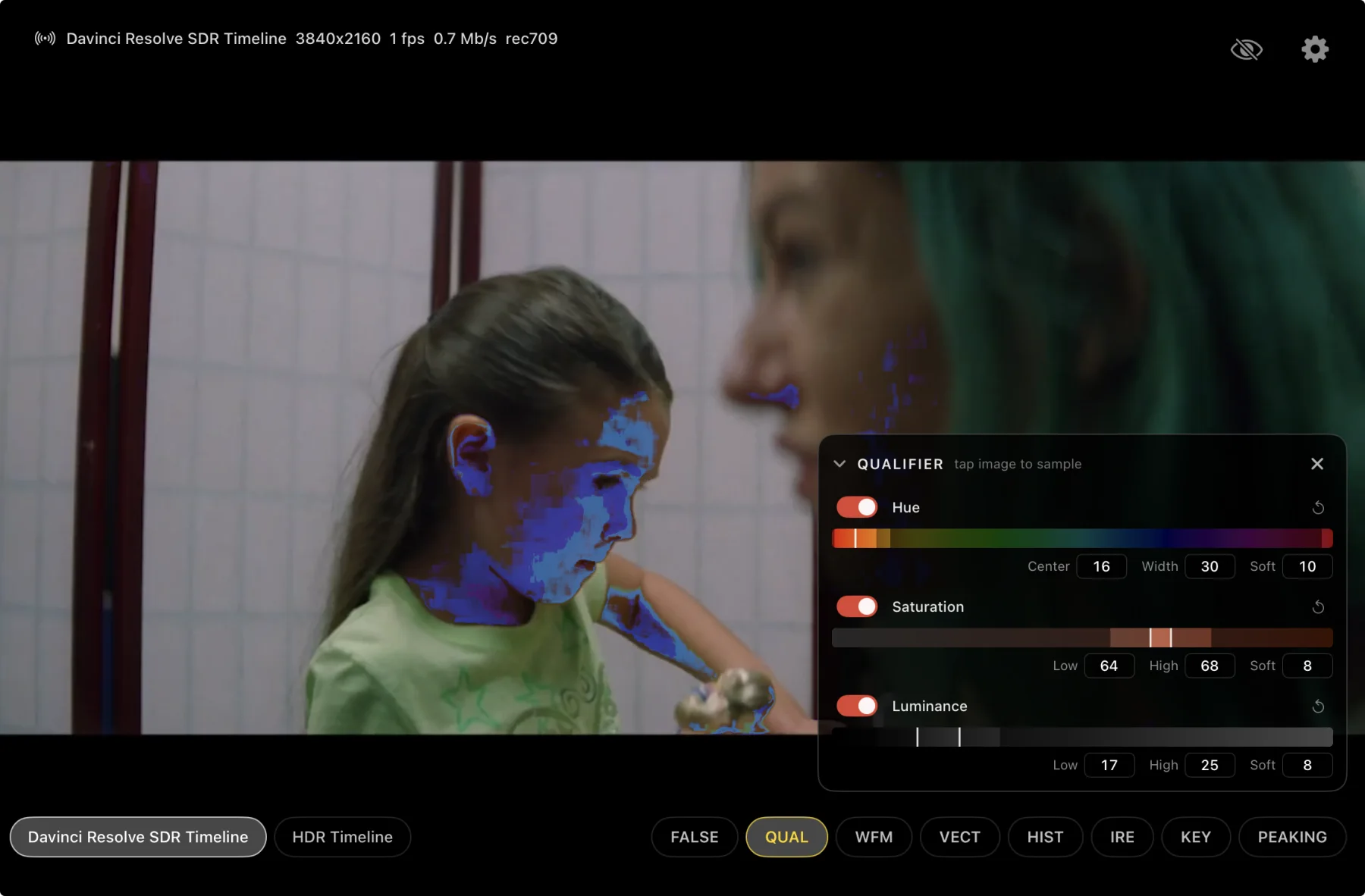
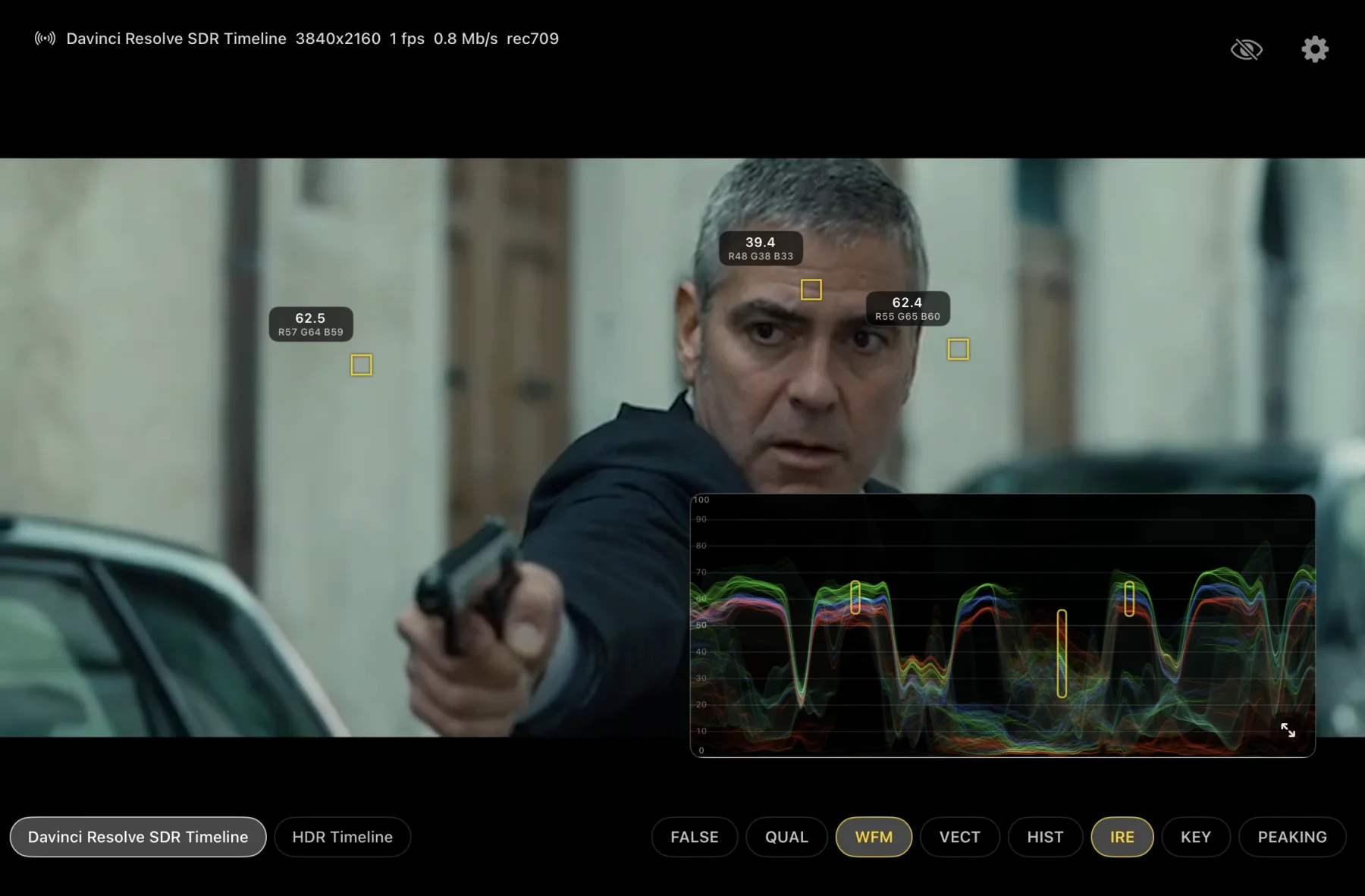
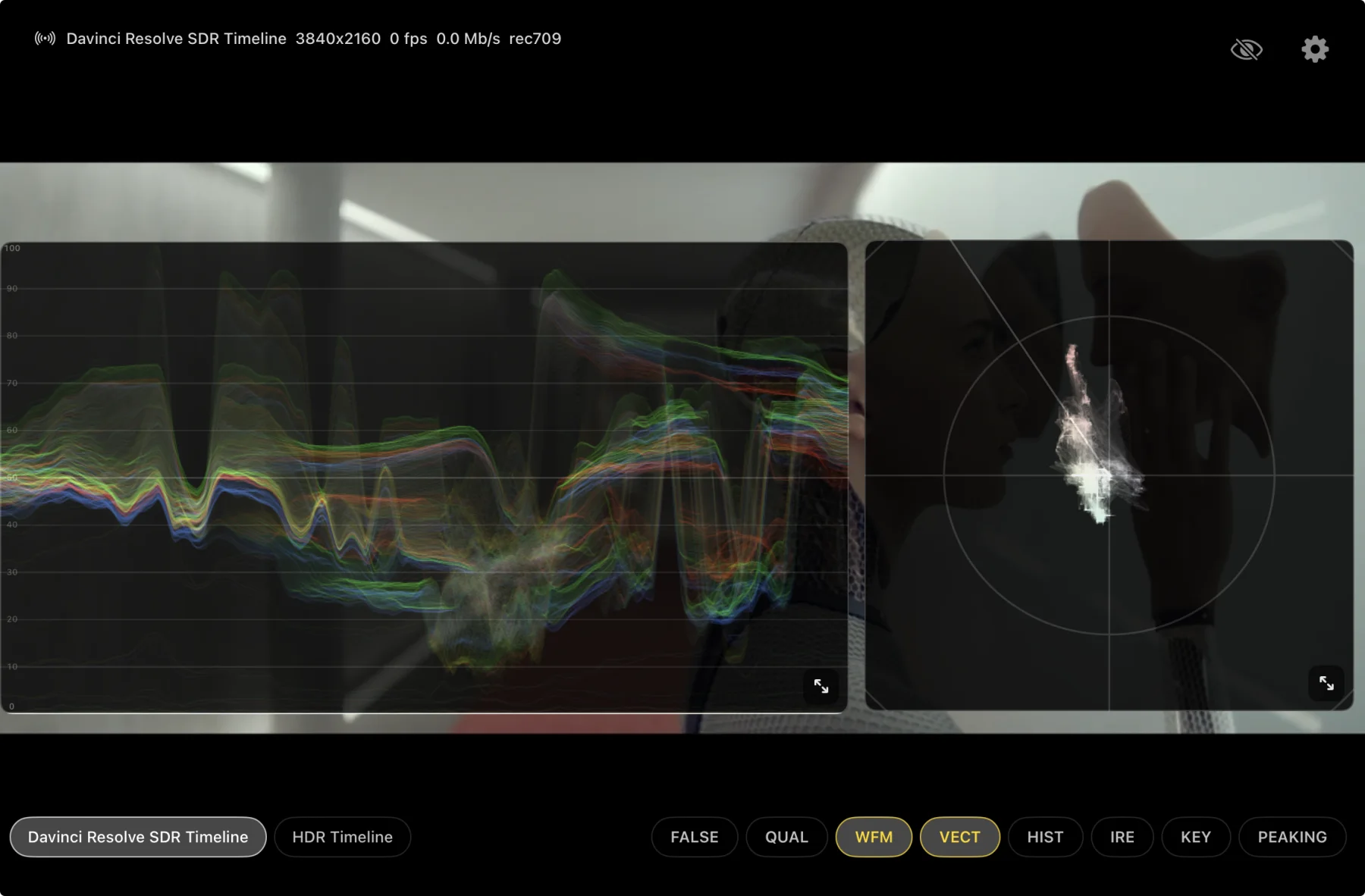
Read the red, green, and blue traces together. Move the panel, resize it, or open it full-screen.
Check hue and saturation against Rec.709 or Rec.2020 targets, with adjustable trace gain.
Compare the distribution of all three channels. Move, resize, or open the histogram full-screen.
Map luminance to fixed colour bands for fast exposure checks in SDR, PQ, and HLG.
Tap a skin tone, refine its HSL range, and apply false colour only inside that selection. Compare skin-tone exposure and consistency between shots while the rest of the frame stays unchanged.
Place and drag up to eight spot meters. The reading stays inside each probe, directly over the sampled area.
Sample a green or blue screen and reveal distance bands or a keyed checker view.
Choose edge, fine-detail, outline, or soft peaking; then set sensitivity, overlay strength, colour, and underlay.
Assign an edit or grading output to any A–D slot, use iPad as a dedicated display, or keep simultaneous SDR and HDR outputs visible on separate devices.
Parade sends the finished Resolve frame directly to iPad. No Blackmagic ID, no internet dependency, and no cloud relay between the timeline and the viewer.
Place the pass-through effect on the final timeline node so it receives the finished frame.
Set the stream colour space and 0.5–100 Mb/s quality range in Resolve.
Put the Resolve system and iPad on the same Wi-Fi network, then open the picture and touch scopes.
The Parade OFX receives the graded frame and passes the image through unchanged.
A local 10-bit picture path. No Parade account and no cloud session to create.
Zoom the frame, move the scopes, place IRE probes, or save a 10-bit HDR HEIC still to Photos.
Resolve carries explicit Rec.709, PQ, and HLG selection. Premiere sends its Rec.709 Program Monitor picture without adding an effect to the timeline.
Place Parade on the final timeline node. Choose Rec.709, Rec.2100 PQ, or Rec.2100 HLG, then send the finished picture to an iPad on the same Wi-Fi network.
Download Resolve OFX Plugin ↓Install the output bundle once, then select Parade Video under Premiere Pro → Settings → Playback. The Program Monitor picture follows on iPad with no timeline effect.
Download Premiere output plugin ↓The OFX exposes the output choice at the source. Parade uses that tag for the iPad display path; Premiere output is Rec.709 in the current transmitter.
Use two iPads and two Parade OFX instances. Each iPad receives its own live colour-space output from the same Resolve timeline. The Resolve system and both iPads must be connected to the same Wi-Fi network.
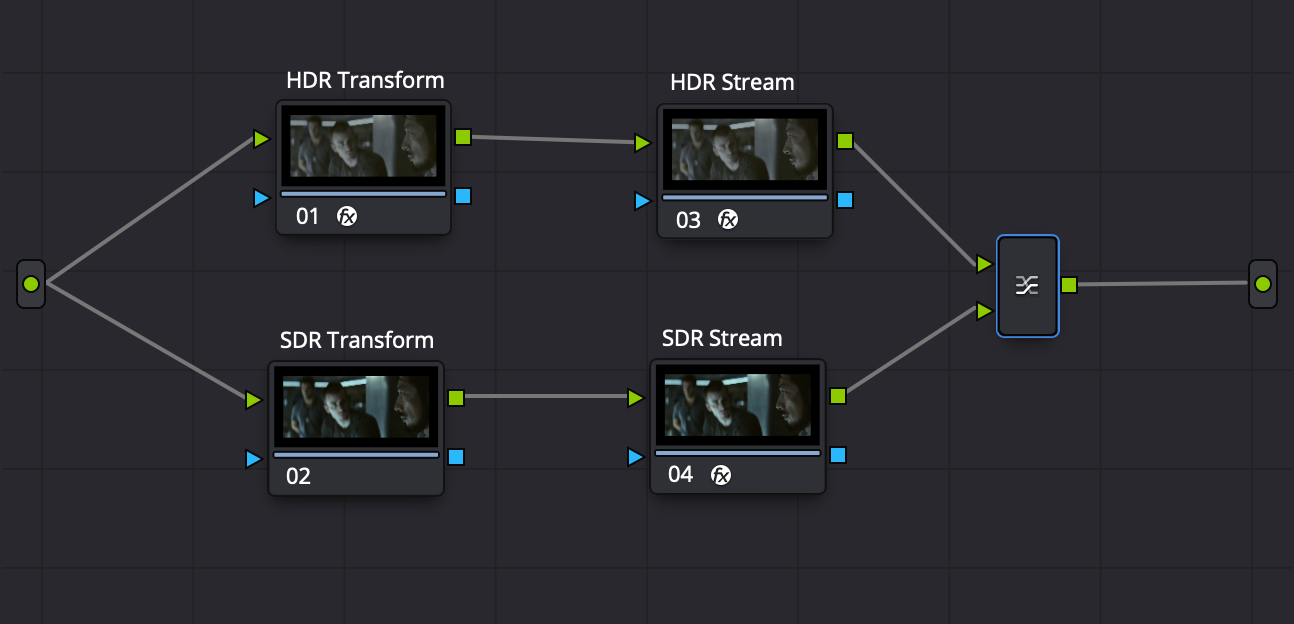
Branch after the grade. Create separate SDR and HDR paths in the timeline node graph.
Transform each branch. Set one path to Rec.709 and the other to Rec.2100 PQ or HLG.
Stream both pictures. Put Parade after each transform, then connect a different iPad to each output on the same Wi-Fi network.
One Resolve timeline. Two live pictures. SDR and HDR remain visible side by side.
From a DaVinci Resolve output or an HDR live feed, two-finger tap saves the current frame as a 10-bit HDR HEIC in Photos. No stopping the grade to export a frame on the Mac. No SDR screenshot flattening the result.
Use the iPad as your dedicated picture while editing, or hand it to a client above the grading monitor. They can zoom into a face, title, edge, or prop and save the HDR frame without taking over Resolve.
For mastering: keep a calibrated reference monitor and controlled video I/O. Parade is a portable, secondary, or client display with scopes.
Parade covers portable quad monitoring, multi-feed recording, playback, timecode, and scopes on iPad. These are the current source paths, physical I/O limits, and host requirements.
iOS and iPadOS 17+. Quad/full-screen switching, freeze, synchronized multi-feed HEVC recording, in-place playback, per-feed timecode, waveform, vectorscope, histogram, false colour, HSL qualifier, up to eight IRE probes, uniformity key, focus peaking, zoom, 10-bit HDR HEIC capture from Resolve or live feeds, and direct UVC transmission from a compatible USB-C device. Two transmitter-mode devices connect directly without a router; three can connect directly at a lower bitrate; a router is recommended for four or more viewers. App installation and updates may still require App Store access.
No. Parade has one local UVC capture path. Fill the remaining quadrants with Parade sources on the local network—other transmitters, Resolve outputs, Premiere, or another available live source.
No. Full-screen is a view change, not a source switch. All four connections stay up, assignments remain in place, and an active recording continues.
Not during a Parade session. Sources travel locally between the devices you connect. No Parade account, cloud relay, or internet connection is required.
No. Parade replaces a portable monitor/recorder/scope role. Keep a calibrated reference monitor and controlled video I/O for mastering and final QC.
10-bit local picture with Rec.709, Rec.2100 PQ, or Rec.2100 HLG selection and adjustable 0.5–100 Mb/s quality.
↓Download Resolve OFX PluginmacOS 13+ · Apple silicon · 32 KB ZIPUnzip and move Parade.ofx.bundle to /Library/OFX/Plugins/.
Restart Resolve. Add Parade from OpenFX → Monitoring to the final timeline node.
A dedicated Rec.709 video output on iPad. No effect on the clip or timeline, and no extra travel display in the case.
↓Download Premiere output pluginmacOS 13+ · Apple silicon + IntelUnzip and move ParadeTransmitter.bundle to /Library/Application Support/Adobe/Common/Plug-ins/7.0/MediaCore/.
Restart Premiere Pro. Under Settings → Playback, enable Parade Video.
Turn up to four DeckLink inputs into separate Parade sources with an Apple-notarized universal Mac app. Name each feed, set its bitrate, and assign it to any A–D slot on Parade viewers connected to the same local network.
↓Download ParadeLink for DeckLink capturemacOS 13+ · Apple silicon + Intel · 1 MB DMGOpen ParadeLink.dmg, drag ParadeLink.app to Applications, and install Blackmagic Desktop Video.
Open ParadeLink and allow local-network access when macOS asks.
Assign a DeckLink input and stream name to each slot you want to publish.